There are many reasons to benchmark your computer. Knowing the technical details of your computer can tell you what it’s capable of doing or if you can run a specific game. Regardless if you only use your computer for tasks such as playing games or editing photos or video, it’s important to know if your system is up to the job.
Here are the best free benchmarking programs all designed to test your computer’s performance.
Futuremark PC Mark 8
Futuremark is famous for its graphics testing software,
3DMark. Designed to stress your graphics card using complex computations that translate to games, 3DMark is a great test to see how powerful your GPU is. Futuremark also makes PCMark, which is designed to test your computer’s capability in a more
real world setting.
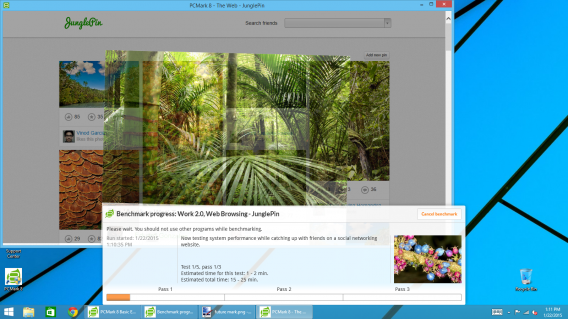
PC Mark 8 focuses on your using your computer for everyday tasks like office suite productivity, web browsing, and video chat. The test simulates these situations and gives you the results. It supplies a breakdown, but these numbers may be a little confusing. You can also compare your scores to others who have tested their machines online.
While the full version of PC Mark has more advanced options, the free version still gives you a general idea of how well your computer runs. If you’re looking to benchmark your computer for gaming, then use 3D Mark.
Novabench
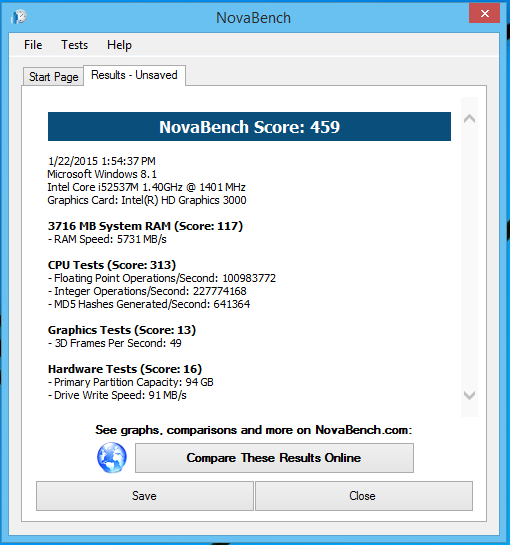
Novabench is another great option if you’re an advanced user. The test Novabench runs is relatively simple on the surface; it tests your RAM, CPU, GPU, and the hard drive. The score can be compared online and will give you a better idea of how good your computer is relative to others.
The problem with Novabench is that many of the test results are strings of numbers that might not mean much to a normal user. Even the results don’t tell you much and you’ll have to go online to compare results.
Novabench might be worth considering as a secondary test rather than your primary one to compare numbers like CPU tests or RAM speed rather than using the final Novabench score.
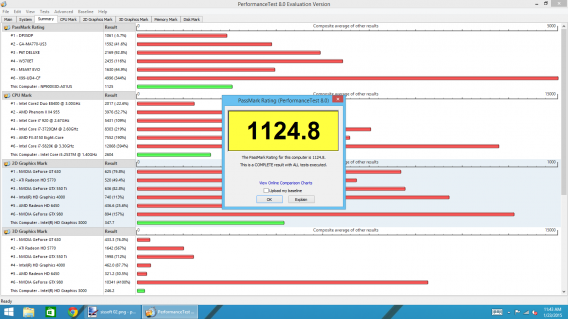
PassMark Performance Test
Performance Test is the best benchmarking app for people who want to learn more about their computer, but don’t want to deal with arbitrary numbers. While the program gives you a benchmark number, it displays more relevant information in other tabs.
Performance Test also shows how your computer stacks up against others within the program. You will need to know a little about your computer like what kind of processor or graphics card it’s using for the results to make sense. But the amount of information that Performance Test supplies is a perfect start to begin tweaking your system.
I suggest using Performance Test if you’re looking to upgrade your computer because it’s great for figuring out what parts you need to upgrade your system. The program offers a free 30 day free trial before requiring a purchase.
SiSoftware Sandra
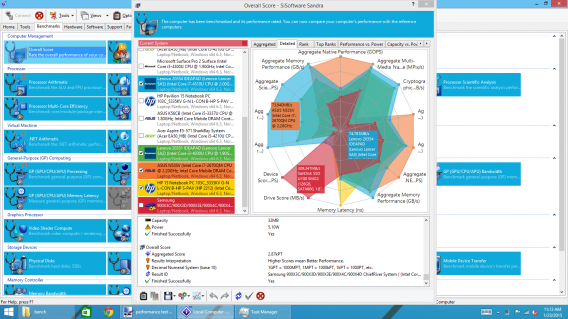
When I ran SiSoftware Sandra to benchmark my laptop, I didn’t expect amazing results. My laptop is built for productivity and internet browsing but Sandra’s results compares performance between manufacturer’s laptops. This means it’s not a comparison to other users who may have built their own computers, but to off-the-shelf computers.
The problem with Sandra is that it gives too much information, even for a power user like me. It contains comprehensive tests that will cover just about everything and anything. The initial test for Sandra took around 30 minutes, during which I let the laptop run through every test without touching it.
If you’re using an ultrabook, there’s no reason to run SiSoftware Sandra unless you want to be depressed. These computers aren’t meant to run games or resource heavy apps. If you’re benchmarking a custom built gaming machine, the results of your test might be really useful in deciding how to further optimize your system.
Fraps
If you play games, you probably already know about Fraps. The real time frames per second (FPS) benchmarking tool is widely used to test how well games run. As opposed to other benchmarking software, there are no artificial tests. Fraps will log the current FPS in the game you’re running to give you an indicator of how well your system handles a particular game.
There are other tools like a screen capture short key (which doesn’t capture the FPS number) and a video capture tool so you can record gameplay to upload somewhere else. The program is light so it doesn’t use system resources so you don’t experience any lag when playing a game.
Fraps’ specialized benchmarking means that it’s not best choice for someone who isn’t playing games on their computer. But if you’re a PC gamer, using Fraps can give you important statistics about your system.
Knowing the potential and real time performance of your computer is important. It’s useful to test a new computer and see how well it can perform. Benchmarking the same computer later on will tell you if you should upgrade your components or buy a new computer. Benchmarking may seem overwhelming, but with the right program, you’ll be able to know exactly what you can expect from your computer.
Source : https://en.softonic.com/articles/best-free-benchmarking-software